ATTENTION: Due to increased demand and order volume, processing time may take an additional 1-3 business days.
HomeCommunitySubjectPL-USB2-BLASTER Cable: Pinout, Datasheet, Block Diagram

PL-USB2-BLASTER Cable: Pinout, Datasheet, Block Diagram

CABLE PROGRAMMING USB The PL-USB2-BLASTER belongs to Intel? FPGA Download Cable. This article will unlock its pinout, datasheet, block diagram, connection and more details about PL-USB2-BLASTER.

248

Feb 10, 2022

Gloria Pope

Understanding and utilizing USB Blaster and JTAG to configure Intel FPGAs


CABLE PROGRAMMING USB

The PL-USB2-BLASTER belongs to Intel® FPGA Download Cable. This article will unlock its pinout, datasheet, block diagram, connection and more details about PL-USB2-BLASTER.
 

PL-USB2-BLASTER

6In Stock
Min.: 1 Mult.: 1
Price not displayed? Not available to buy online? Please send an RFQ, and we will respond immediately.
Quick Links

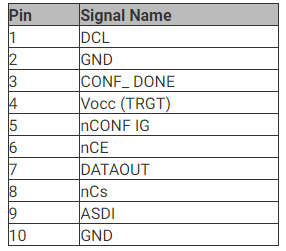
PL-USB2-BLASTER Pinout

PL-USB2-BLASTER Pinout

PL-USB2-BLASTER Introduction

The PL-USB2-BLASTER belongs to Intel® FPGA Download Cable. The Intel  ® FPGA  Download Cable interfaces a USB port on a host computer to an FPGA  mounted on a printed circuit board. The cable sends configuration data from the host computer to a standard 10 -pin header connected to the FPGA,  You can use the Intel FPGA Download Cable to iteratively download configuration data to a system during prototyping or to program data into the system during production.

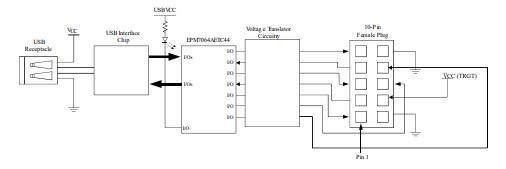
PL-USB2-BLASTER Block Diagram

The following figure shows the block diagram of PL-USB2-BLASTER

PL-USB2-BLASTER Block Diagram

PL-USB2-BLASTER Using

To start using the Intel  FPGA Download Cable, you must install the drivers on your system and set up the hardware in the Intel  Quartus® Prime software. Intel recommends that you use the latest version of the Intel  Quartus Prime software. To program or configure the device, connect the host system to the device board using the Intel  FPGA Download Cable and initiate the programming or configuration using the Intel  Quartus Prime Programmer. You can also use the cable with the Intel Quartus Prime Signal Tap Logic Analyzer for logic analysis.

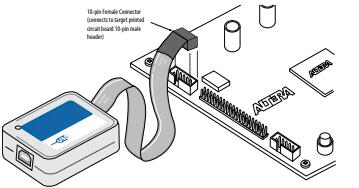
PL-USB2-BLASTER Cable-to-Board Connection

  • Disconnect the power cable from the device board.

  • Connect the Intel FPGA Download Cable to your PC.

  • Plug the Intel FPGA Download Cable into the 1 0-pin header on the device board.

  • Connect the power cable to the device board. The Found New Hardware wizard may open and prompt you to install a new hardware driver,  Close the wizard and follow the steps provided in subsequent sections to install the hardware driver.

  • To disconnect the Intel FPGA Download Cable from the device board, follow these steps to ensure that the cable is not damaged.
    a. Remove power from the device board.
    b. Unplug the Intel FPGA Download Cable from the board.
    c. Unplug the Intel FPGA Download Cable from your PC.

Cable-to-Board Connection

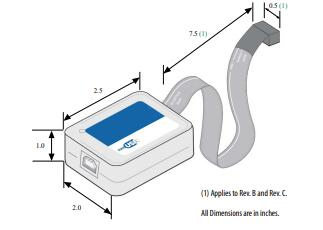
PL-USB2-BLASTER Dimension

PL-USB2-BLASTER Dimension

Datasheet PDF

PL-USB2-BLASTER Documents

Download datasheets and manufacturer documentation for PL-USB2-BLASTER

Frequently Asked Questions

What does a USB Blaster do?
A USB port download cable that allows PC users to program and configure devices in-system.
What is the difference between USB Blaster and USB Blaster II?
A: The main difference is the JTAG circuit, the UBT(USB Blaster Download Cable) supports the USB Blaster I circuit and the JTAG Voltage: 2.5V ~ 3.3V. The AUB2 (USB-Blaster II Download Cable) supports USB Blaster II circuit and JTAG Voltage: 5.0-V TTL, 3.3-V LVTTL/LVCMOS, Single-ended I/O standards from 1.5 V to 3.3 V.
How do I install a USB-Blaster driver?
Plug the USB-Blaster download cable into your PC. The Found New Hardware dialogue box appears. Select Locate and install driver software (recommended). Select Don't search online. When you are prompted to Insert the disc that came with your USB-Blaster, select I don’t have the disc. Show me other options. Select Browse my computer for driver software (advanced) when you see the Windows couldn’t find driver software for your device dialogue box. Click Browse, and browse to the <Path to Quartus Prime installation>\drivers\usb-blaster directory. Note: Do not select the x32 or x64 directories. Click OK. Select the Include subfolders option, and click Next. If you are prompted Windows can’t verify the publisher of this driver software, select Install this driver software anyway in the Window Security dialogue box. The installation wizard guides you through the installation process. When The software for this device has been successfully installed dialogue box appears, click Close. To complete your installation, set up programming hardware in the Intel Quartus Prime software.
What do you need to start using the Intel FPGA Download Cable?
Install the drivers on your system and set up the hardware in the Intel Quartus® Prime software.
What does Intel recommend you use to start using the Intel FPGA Download Cable?
The latest version of the Intel Quartus Prime software.
FAQ
What does a USB Blaster do?
A USB port download cable that allows PC users to program and configure devices in-system.
What is the difference between USB Blaster and USB Blaster II?
A: The main difference is the JTAG circuit, the UBT(USB Blaster Download Cable) supports the USB Blaster I circuit and the JTAG Voltage: 2.5V ~ 3.3V. The AUB2 (USB-Blaster II Download Cable) supports USB Blaster II circuit and JTAG Voltage: 5.0-V TTL, 3.3-V LVTTL/LVCMOS, Single-ended I/O standards from 1.5 V to 3.3 V.
How do I install a USB-Blaster driver?
Plug the USB-Blaster download cable into your PC. The Found New Hardware dialogue box appears. Select Locate and install driver software (recommended). Select Don't search online. When you are prompted to Insert the disc that came with your USB-Blaster, select I don’t have the disc. Show me other options. Select Browse my computer for driver software (advanced) when you see the Windows couldn’t find driver software for your device dialogue box. Click Browse, and browse to the <Path to Quartus Prime installation>\drivers\usb-blaster directory. Note: Do not select the x32 or x64 directories. Click OK. Select the Include subfolders option, and click Next. If you are prompted Windows can’t verify the publisher of this driver software, select Install this driver software anyway in the Window Security dialogue box. The installation wizard guides you through the installation process. When The software for this device has been successfully installed dialogue box appears, click Close. To complete your installation, set up programming hardware in the Intel Quartus Prime software.
What do you need to start using the Intel FPGA Download Cable?
Install the drivers on your system and set up the hardware in the Intel Quartus® Prime software.
What does Intel recommend you use to start using the Intel FPGA Download Cable?
The latest version of the Intel Quartus Prime software.

TAGS

Share